天蓋 · canopy
Wrap a wallpaper around the whole sky.
Tengai turns any image into an OptiFine custom-sky pack for Minecraft — one picture split across all six faces of the world, not the same tile stamped six times.
A real Tengai export: one wallpaper unwrapped into the six faces Minecraft draws. Drag the scrubber to move through the day.
demo art — @savisavichan
Features
Everything it does, and what it looks like.
Custom skies come with a lot of jargon. Pick anything on the left and see what it actually means — every picture here comes from the wallpaper chosen up in the hero, so switching it switches these too.
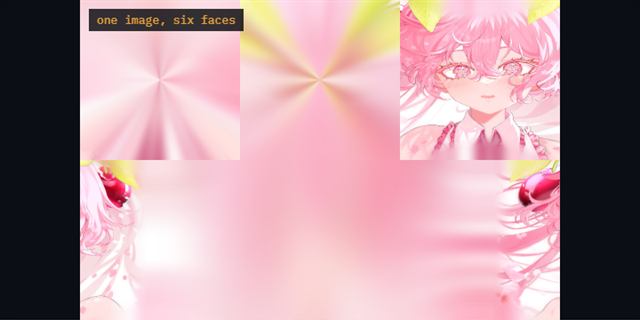
One picture, six sides
The Minecraft sky is a box around you. Tengai cuts your image into the six faces of that box, so turning around shows a different part of the same picture instead of the same picture again.
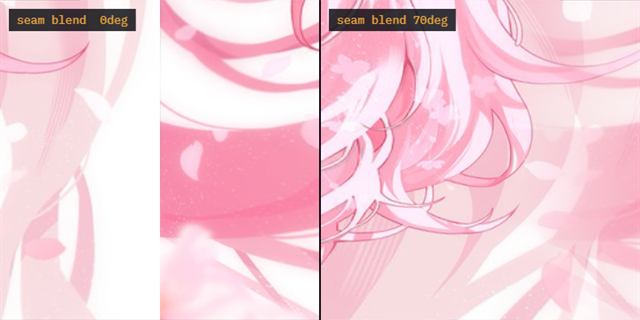
No visible join
Wrapped the whole way round, the left and right edges of your picture have to meet somewhere behind your back. Left is that join left hard; right is the same view with the two edges faded into each other.
In the appSeam blend
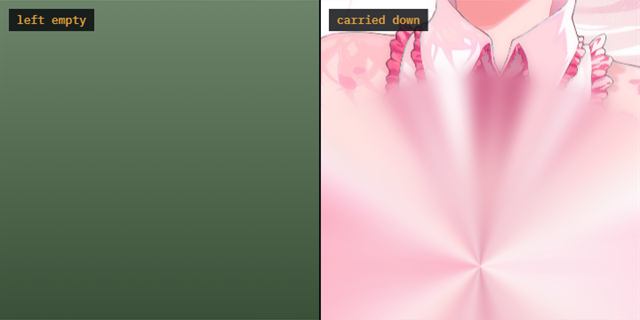
Ground under your feet
A flat picture holds nothing for the area below the horizon. Left is what looking down gives you without help — a hole. Right carries the colours at the bottom edge downwards and softens them.
In the appFloor colour, or sample from image
Frame it how you want
Decide how much of the sky the picture takes up. Squeezed into 108° it fills your view; spread across 234° you see more of the world around it. You can also slide it up or down, stretch it, or spin the whole sky.
In the appSize · Vertical span · Vertical offset · Rotate
See it before you commit
A live preview shows the sky the way the game will draw it. Drag to look around, scroll to zoom, scrub the clock to watch your skies trade places — all before a single file is written.
In the appIn-game preview · Atlas
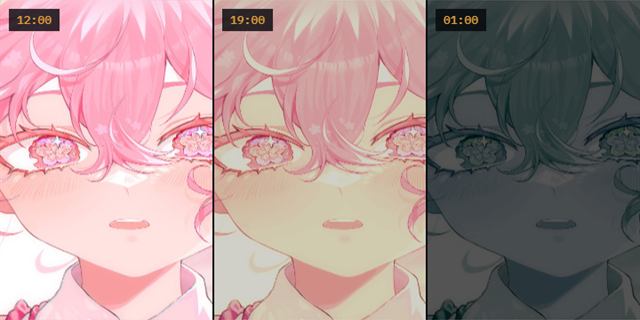
A different sky per hour
One pack can hold as many skies as you like, each with its own stretch of the Minecraft day — noon, dusk and midnight here. They hand over to each other as the clock moves.
In the appAdd a sky · Transition starts · Complete at
each sky stays solid until the next has fully covered it
Timing sorted for you
Getting those handovers right by hand is fiddly — two skies fading past each other don't add up to a solid sky, so plain Minecraft shows through in the gap. One button splits the day evenly and overlaps the fades so that never happens.
In the appSpace them across the day
custom-sky.zip
├─ pack.mcmeta
└─ assets/minecraft/mcpatcher/sky/world0/
   ├─ dawn.png     sky1.properties
   ├─ noon.png     sky2.properties
   └─ dusk.png     sky3.properties
Straight into the game
Export gives you a finished .zip to drop in your resourcepacks folder — atlases, properties files and pack metadata already in the places OptiFine looks. Or take just the atlas PNG and build the pack yourself.
In the appDownload resource pack · Atlas PNG only
- Tengai.exe
- 1.4 MB · the whole program
- %LOCALAPPDATA%\Tengai
- ~14 MB · made on first run
- Program Files
- nothing
- Registry
- nothing
- Administrator rights
- never asked
Nothing to install
One .exe — download, double-click, done. The only thing it leaves behind is a working folder in your own user profile, holding a support library and the cache for the browser engine it draws with. Delete that folder and nothing of it is left.
How it works
Three steps, about a second.
No account, no upload, no command line. The whole conversion happens on your own machine.
Drop in an image
Any wallpaper, screenshot or piece of art. Bigger is better — the source resolution is what caps how sharp the finished sky can be.
It wraps the sphere
The image is projected onto a sphere and cut into a cube. Seams get cross-dissolved, and the ground below the horizon is extended so there's no void under your feet.
Take the pack
Out comes a .zip that goes straight into your resourcepacks folder. OptiFine reads it as a custom sky — nothing else to configure.
The difference
Six faces, one image.
The quick way to make a custom sky is to stamp the same picture on every side of the sky box. Turn around and you see it again; look up and nothing lines up. Tengai treats the image as a full panorama and cuts the six faces out of it, so the horizon runs continuously the whole way around.
Repeated · the same picture six times
Six copies, each squashed to fit a square. Nothing meets at the corners.
Wrapped · one image, cut into six
Each face is a different direction of the same sky. It joins up.
Time of day
Skies that keep time.
A pack can hold as many skies as you like, each with its own window of the Minecraft day. Dawn hands over to noon, noon to dusk, dusk to night.
Overlapping the crossfades correctly is fiddly by hand — two skies fading past each other don't add up to a solid sky, so the vanilla one shows through at every handover. There's a button that fixes it: it splits the day evenly and orders the fades so each sky stays solid until the next has fully covered it.
Specifications
What you're downloading.
One executable. No installer and no runtime to fetch.
A working folder in your user profile. Delete it and it's gone.
Writes the mcpatcher sky path, with the optifine path optional.
Up to a 6144 × 4096 atlas per sky, bicubic and supersampled.
Give it a wallpaper and see.
Windows 10 and 11. Nothing to install — download it and it opens.
Download Tengai 1.4 MB